Users management
User roles
There are three roles a user can have within ProFID:
- viewers - They have limited view rights, and cannot create or edit anything. Any active user is a viewer by default.
- editors - They have broader read rights, and can create and update documents, series and analyses
- administrators - They have the most extended rights, including managing users
| Right | Viewers | Editors | Administrators |
|---|---|---|---|
| View services and seizure authorities | ✅ | ✔️ | ✔️ |
| View series | ✅ | ✔️ | ✔️ |
| View documents | ✅ | ✔️ | ✔️ |
| View document sets | ✅ | ✔️ | ✔️ |
| View Padif analyses | ✅ | ✔️ | ✔️ |
| View, upload and delete scans | ✅ | ||
| Create, update and merge series | ✅ | ||
| Create and update documents | ✅ | ||
| Create and update document sets | ✅ | ||
| Create and update Padif analyses | ✅ | ||
| View audit logs | ✅ | ||
| Delete documents | ✅ | ||
| Delete series | ✅ | ||
| Retry imports of document scans | ✅ | ||
| View single user | ✅ | ✔️ | ✔️ |
| View confirmed and validated users | ✅ | ✔️ | |
| View all, create and edit users | ✅ | ||
| Enable / disable users | ✅ |
List of rights granted per role
Some elements's presence in the application depend on the user's role. For example, the "Admin" menu is not the same for an editor and an administrator as shown below.
Menu as editor

Menu as admin

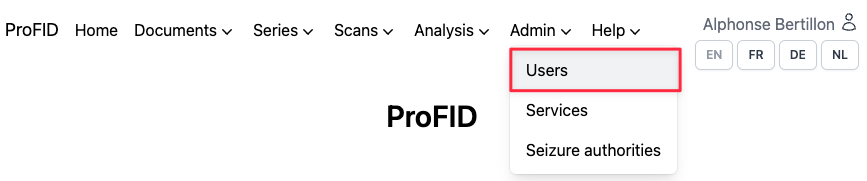
Users
The "Users" page is for creating users as well as managing them and their access rights.
By clicking "Create a user" button at the top of the page a prompt will appear asking you to fill user's email, access rights level and an organization that the user belongs to.
If a new user does not belong to any service then you need to create one beforehand. To do so, please, follow the instructions in Services.
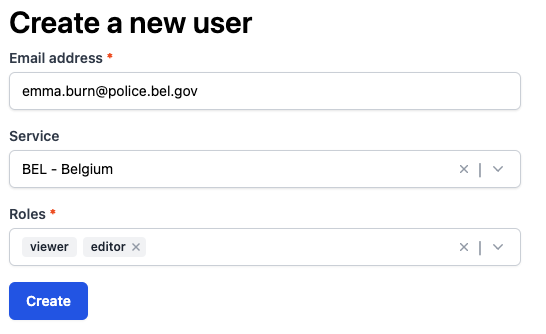
After that you need to click on the button which sends the confirmation link to the new user. Received link will lead the user to a page where one can set their password.
Past this point the user will be activated and able to use ProFID depending on their access rights.
Here is how a list of users looks like after a number of users has been created. It shows user's name, service, role and account's status. At the top of the page there are three filters which can sort users by status, service or name.
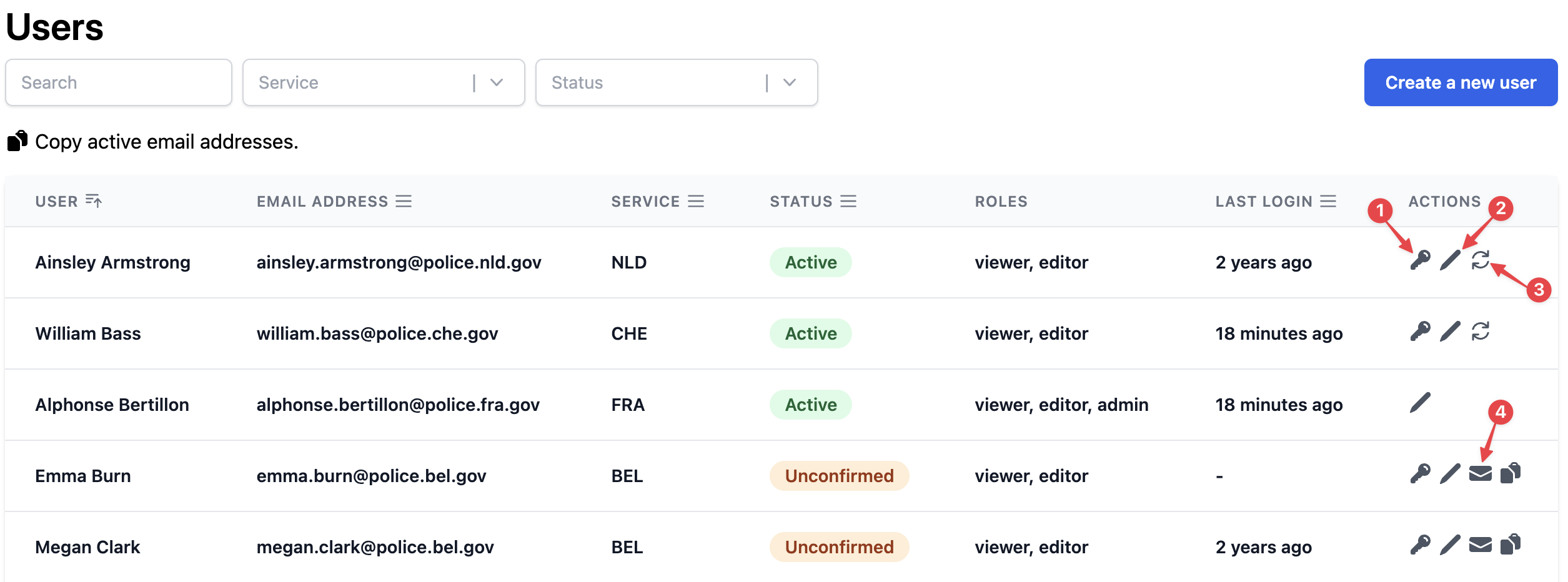
There are multiple actions that an admin can do with the users.
| Action | Meaning | How it looks like |
|---|---|---|
| Change roles | Define the access rights and available features, by selecting the roles which apply to the user | 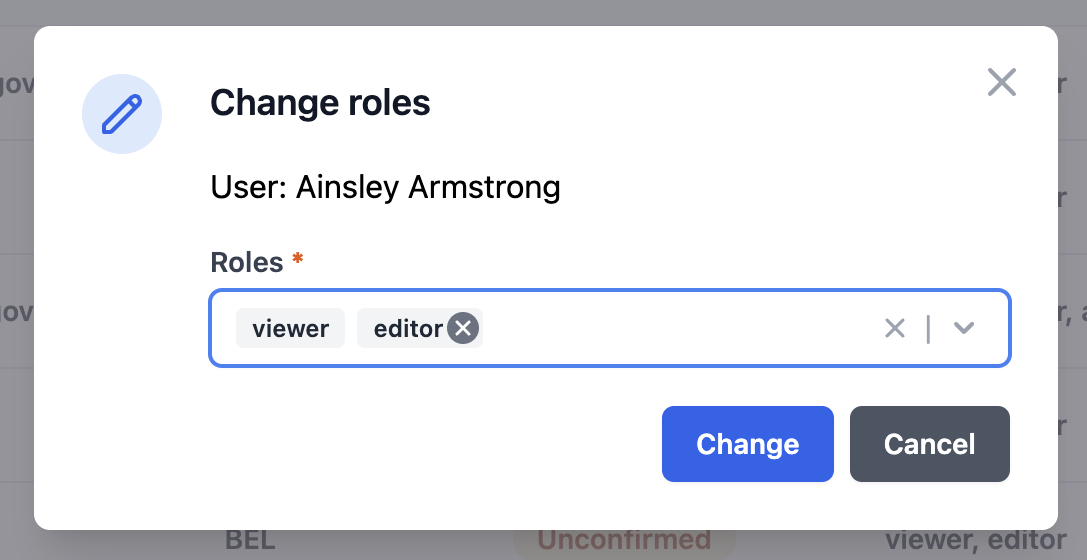 |
| Edit user | Change the service they belong to, or enable / disable the account. | 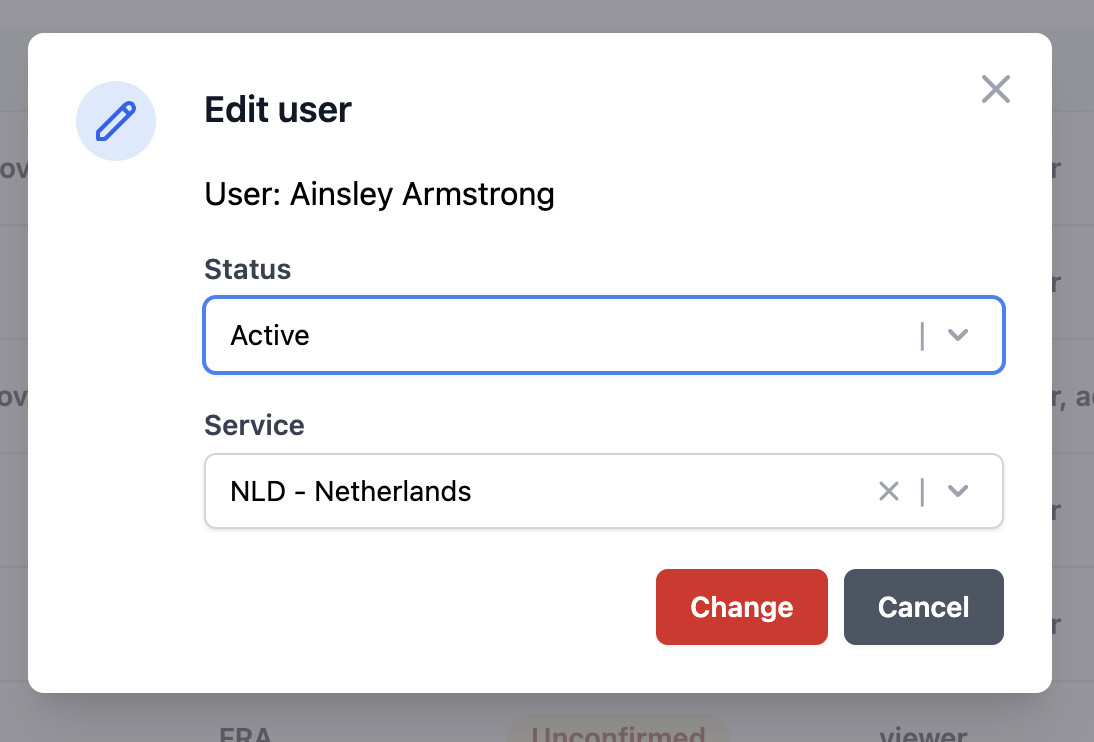 |
| Reset password | You can reset password for a user so that a new one can be created. | 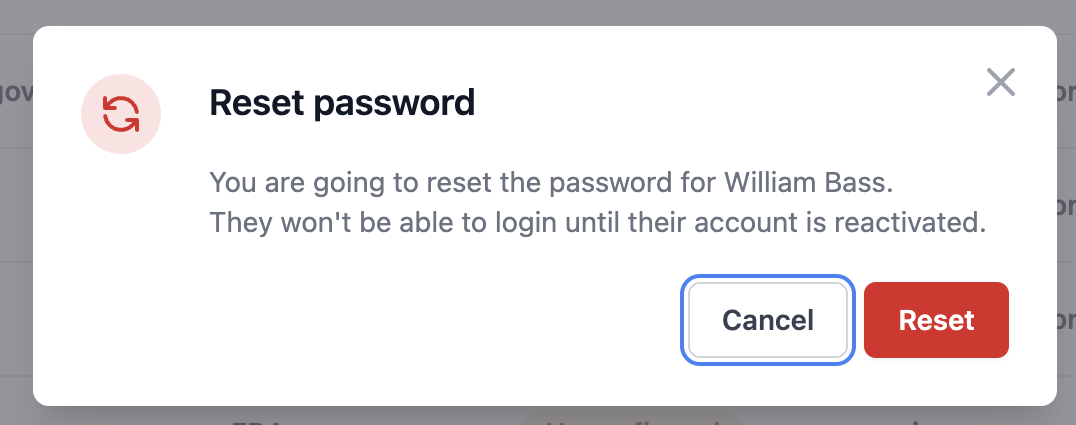 |
| Send a confirmation mail | It is needed for a new user to activate an account and set one's password. Once you click this button a window to send an email with a link will appear. | 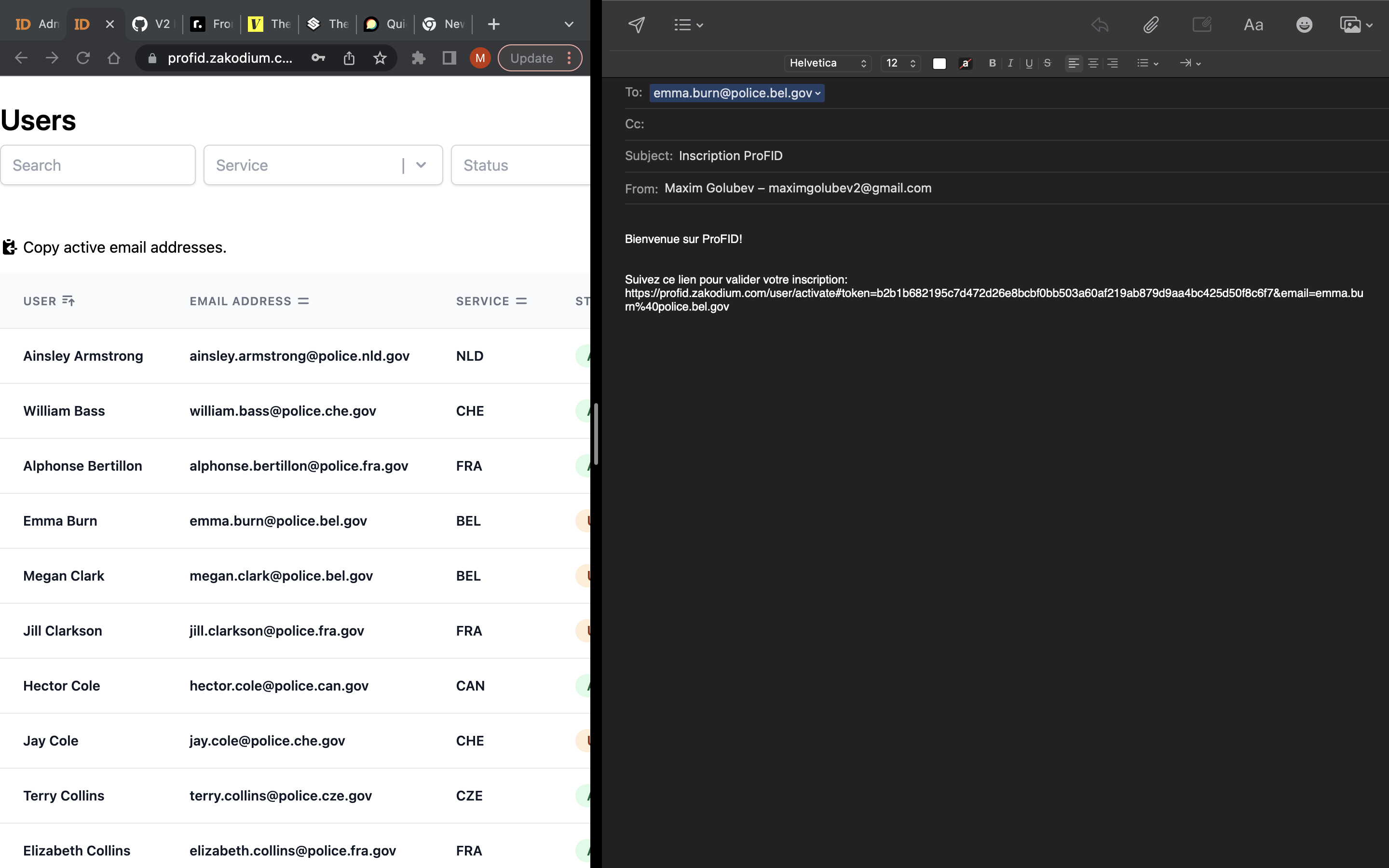 |