Anonymizing scans
Interface overview
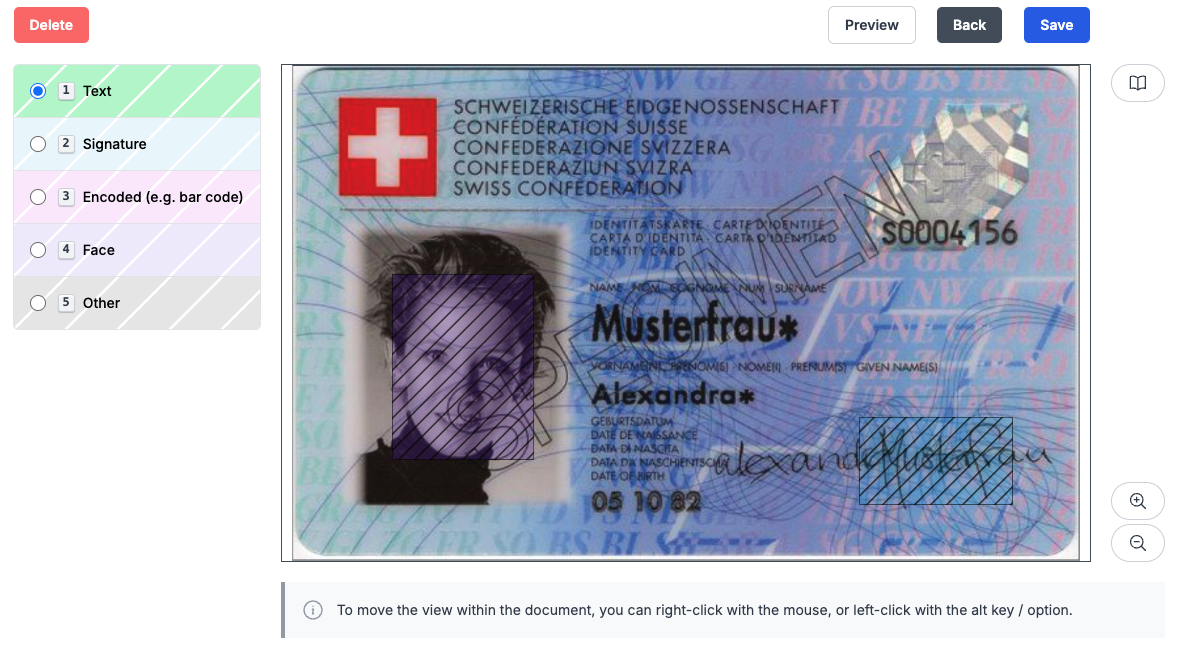
Editing the regions to anonymize during the import process is done via the interface shown above.
It displays the image of the scanned document with the already existing regions to anonymize. From there, existing regions can be changed and new regions can be created.
You can select the type of content you want to anonymize by clicking on the selector at the left of the page.
You can also use your keyboard to select the right option. Press a number from 1 to 5 to select the corresponding option.
From the toolbar at the top you can:
- Delete: Click to delete the currently selected region. The button is disabled if nothing is selected.
- Preview: Click to display a preview of the anonymized document.
- Back: Cancel the edition and return to the previous page.
- Save: Click to save your regions and go back to the import process overview page.
From the toolbar on the right you can:
- Access this documentation.
- Zoom in and out of the document.
Create an anonymized region
To create an anonymized region, select the corresponding data type from the left panel. In this example, we are going to anonymize the first name, which falls under the "Text" category.
Select the "Text" category or press 1, then click and drag to draw on the image as shown below.
Resizing
If you've positioned the zone incorrectly, you can resize it at any time. To do this, select the region and use the white corners/edges to resize it.
Moving a region
To move a region, click and drag it to wherever you like.
Moving the document image
The recommended way to move the document image is to use the right click and drag.
You can use the Alt key as well. Once it is pressed, you will notice that the cursor changes to a hand. Then click and drag anywhere on the image to move it.
Delete an anonymized region
To delete a region, select it by clicking on it, then press the Delete or Backspace key, or click on the "Delete" button.
Zooming
There are two ways to zoom into the image.
The easiest is to use the mouse wheel. Point your mouse towards the part of the image you are interested in, and then use the mouse wheel to zoom in or out of that point.
You can also use the buttons in the toolbar on the right, which will zoom in or out of the center of the image.
By double-clicking on the image, you can reset the zoom level.
Cancel an action
You can cancel the ongoing action by pressing the Esc key on your keyboard.
Preview
You can preview the document with the anonymization applied by clicking on the "Preview" button. Click again or press Esc to exit the preview.